
Volunteer Portal Guide
SPS volunteer applications are processed via an online volunteer portal, which saves over 100,000 sheets of paper every school year. Thank you for helping us save trees and education funds!
- How can I verify if I already have a volunteer portal account?
- How can I log in to the SPS volunteer portal?
- How can I activate my archived volunteer application?
- How can I change the school(s) I wish to volunteer with?
- How can I update the SPS staff member I will volunteer with?
- Problems logging in to the volunteer portal and password retrieval
- My volunteer dashboard is blank
- How can I update my contact information, name(s), password, etc.?
- How do I renew an expired background check?
- How can I upload my ID?
- How can I check the status of my volunteer application?
- How do I know if I am approved to volunteer?
- How can I update Adult Sexual Misconduct Prevention Training answers on my volunteer application?
- How can I purchase my national background check for Tier 2 volunteer clearance?
- How is volunteer information protected?
How can I verify if I already have a volunteer portal account?
- Choose the volunteer role you were assigned
- Click on the blue Sign Up link
- Next, click “New Volunteer.”

- Enter the email address you used when you originally signed up to volunteer with SPS. Please check multiple email options if you use or currently use more than one email.

- If a notification appears that a user with that email address already exists, please follow the instructions for returning volunteers.
- If a notification does not appear, you do not have an application on file under the email address you entered. Please follow the instructions for new volunteers.
How can I log in to the SPS volunteer portal?
- Go to the volunteer portal login page and use your email address and password to access your account.
- You will see a welcome message, your volunteer status, and a link to your volunteer profile on the left.
- At the bottom of the dashboard are the names of the volunteer roles you applied for and your status for each role.
- On the left, you will also find additional volunteer resources such as the Volunteer Handbook, Chaperone Guideline Forms, etc.
How can I activate my archived volunteer application?
- Log in to the volunteer portal
- Locate the school where you wish to volunteer
- Choose the volunteer role and “Sign Up.”
- A pop-up window will open confirming that your application is now affiliated with that volunteer role and school.
- Go to the “Dashboard” to complete any missing or expired parts of your previous volunteer application.
- Once all steps are completed, your school will receive a notification about your application.
How can I change the school(s) I wish to volunteer with?
- Log in to the volunteer portal
- Locate the school where you wish to volunteer
- Choose the volunteer role and “Sign Up.”
- A pop-up window will open confirming that your application is now affiliated with that volunteer role and school.

- Click the “Dashboard” link in the top right corner

- If your dashboard shows incomplete volunteer application steps, open each step and edit the required fields until you finish them all.
- Please also remember to remove yourself from any schools you no longer want to volunteer with. To do this, scroll to the bottom of your dashboard to locate the list of your volunteeer roles and the schools that have access to your volunteer application:

- Here, you can opt out of the roles and/or schools where you no longer want to volunteer.
How can I update the SPS staff member I will volunteer with?
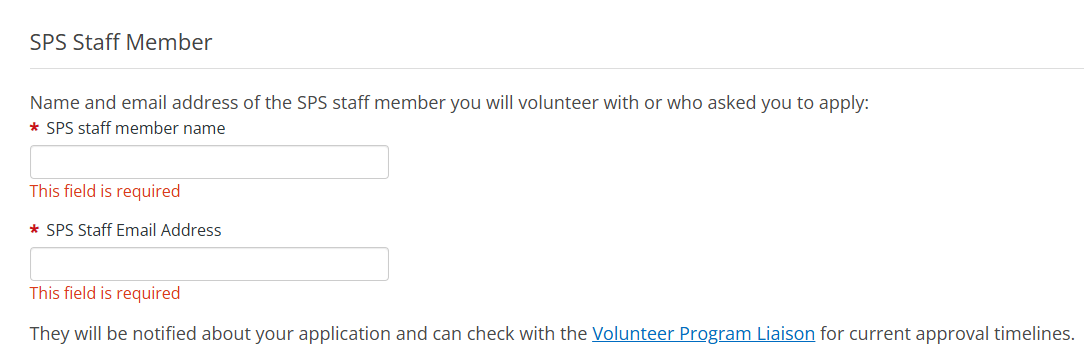
When you renew your volunteer application, move to a different school, or apply to volunteer in a different role, you will want the new SPS staff member you will work with to be notified about your approval. Here is how you can update their name and email address:
- Log in to the Volunteer Portal
- On the left, click “Edit Profile.”

- Fill in or update two text boxes under the SPS Staff Member heading – you will need the staff member’s name and email address.
- Keep scrolling to the bottom of the webpage and then click “Save” to submit your updates.
- Do not close your web browser until the following message is displayed: “Your profile has been updated!”
Problems logging in to the volunteer portal and password retrieval
- How can I reset my password without logging in to the volunteer portal?
- I tried to reset my password, but haven’t received the follow-up email.
How to reset your volunteer portal password and what to do if you are not receiving your reset email:
- Go to the password reset page in the Volunteer Portal.
- Enter the email address you used when filling out the application.
- Enter your birth date.
- If your email address is in the SPS volunteer application system, you will see the following message. Please note that this is step 2 of 3, not the final step yet:

5. You must click on the blue hyperlink and type your full email address into the blank red text box:

6. Click “Send Password Reset Email”.
7. An email will be sent to you shortly with a link to create a password. You must click on the link in the email within 30 minutes.
Check your junk/bulk/spam folder if you can’t locate the email.
You requested a password reset but haven’t received the automatic email.
- Make sure you followed all 6 steps for password reset described above. Many volunteers stop at step 4 and close the window. If you are not sure, please complete the reset again.
- Check your junk/bulk/updates folders to locate an email from system@ecemail.samaritan.com with your password reset link.
- Not there? Wait 24 hrs – your email server may be filtering our message.
- Find the email address you used in your original volunteer application. Search for “system@ecemail.samaritan.com“ in all your email accounts to find the email receipt from your original application or other emails you received from us. Then find the exact email address or its variation to which the receipt was sent – only this email will allow you to log into your volunteer profile.
- Still no luck? Contact the Volunteer Liaison of the school where you originally applied, who can provide you with the email address you used. Please include your full name and Date of Birth when you contact them so they can look up the correct application.
My volunteer dashboard is blank
You have successfully logged into the volunteer portal or started a new volunteer application; however, the dashboard is not showing any steps for you to complete.
You have successfully logged into the volunteer portal or initiated a new volunteer application; however, the dashboard is not displaying any steps for you to complete:
- If you are a returning volunteer, your dashboard is blank, and you logged in to renew your background check, please follow these steps.
- If you are a returning volunteer, your dashboard is blank, and you logged in to update your Adult Sexual Misconduct Prevention course answers, please follow these steps.
- If you have just initiated your volunteer application and don’t see any tasks on your dashboard, wait a few seconds to make sure the page has fully loaded. The page is still loading if five colorful dots appear at the top:

- Once fully loaded, your dashboard will appear like this:

- Complete steps 1-5. Each will display a green check mark once completed successfully.
- After you complete step 5, your volunteer application will be sent to your school for review.
How can I update my contact information, name(s), password, etc.?
- Log in to the Volunteer Portal
- On the left, click “Edit Profile.”
- Here, you can update the following information:
- Email (User ID)
- Password
- First Name
- Middle Initial
- Last Name
- Date of Birth
- Preferred Name/Nickname
- Street Address
- City
- State
- Zip Code
- Primary Phone
- Notification Preferences
- Mobile carrier
- Name and email address of the SPS staff member you will volunteer with
- Emergency Contact
- Once your information is updated, keep scrolling to the bottom of the webpage and then click “Save” to submit your updates.
- Do not close your web browser until the following message is displayed: “Your profile has been updated!”
How do I renew an expired background check?
- Choose the school where you will be volunteering
- Choose the volunteer role you were assigned and click “Sign Up.”

- Click “Sign Up”, then “Login”

- A pop-up message will confirm your new school and volunteer role affiliation
- Click “Dashboard” in the top right corner
- Under the “Welcome Back” message, you will see one or two tabs, each displaying your onboarding steps for one volunteer role. Click on the tab displaying the volunteer role you want to prioritize.
- Review your onboarding steps: incomplete or missing steps will show in blue boxes; completed items will be marked with a green check box:

- Step 4 focuses on your background check reauthorization.
- Be sure to complete the “Criminal History Disclosure” section. Review your past answers and update them if needed. Volunteers who do not disclose their criminal records are automatically ineligible to volunteer with SPS (including misdemeanors and records older than 7 years).
- Carefully read each section before you agree to it.
- Submit your background check.
- Your dashboard will be updated according to the results of your background check.
- Your School Volunteer Liaison will receive a notice about your background check clearance. If your background check does not clear automatically, the district office will review it. Please note that applicants with no criminal record are not always cleared automatically, especially if they have a popular name or made errors when entering their name and/or aliases.
- Your background check is confidential – learn more on our background check page.
How can I upload my ID?
Before you begin, please review the ID requirements:
- Allowed File Types: doc, docx, webp, jpg, jpeg, png, gif, otf, pdf, csv, xls, xlsx. Max File Size: 4mb
- The ID must show:
- Date of Birth
- Full legal name
- A photo of your face
- A WA State ID is best.
- If you are an international student, J-1, or a work visa holder, please use the image of your US Embassy-issued visa as your ID. This is the page in your passport that displays your photo, date of birth, and the name of the U.S. consulate that issued your visa.
How to upload your ID file:
- Log in to the Volunteer Portal
- Click “My Attachments” on the left.
- Click “Upload” inside the Identification box.

- Click “Choose File”. This will open your computer files.

- Select an image of your ID from your computer, preferably your WA State ID.
- Click “Upload File”. The image you attach will appear for your review.

- Click the Save button to confirm and save the image.
Note: Your school does not have immediate access to changes you make to your volunteer profile. They can review your ID within 24 hours after you upload it.
How can I check the status of my volunteer application?
- Log in to the Volunteer Portal
- The volunteer dashboard will show you one or two onboarding tabs, each displaying the steps required for approval for each volunteer role.

In this example, the volunteer completed all onboarding steps. If a school staff member is waiting for their approval to fill an upcoming volunteer shift, the School Volunteer Liaison will review this application and determine if the volunteer can be approved – see step 6 here.
- Once the School Volunteer Liaison approves the application, step 8 will change from “Final Review” to “Approved”.
How do I know if I am approved to volunteer?
Each school has a designated school volunteer liaison. Liaisons receive and process volunteer applications. The liaison completes your approval process based on the information you entered into the application. See Step 5 “School Approval” on the volunteer application page for details.
Once approved for a specific volunteer role, your onboarding tab will show Step 8 as complete, marked with a green check mark:

How can I update Adult Sexual Misconduct Prevention Training answers on my volunteer application?
- Log in to the volunteer portal
- You will see a welcome message and, below it, two tabs displaying your onboarding steps.
- Click on the onboarding tab for the volunteer role you were asked to sign up for.
- You will see up to 7 onboarding steps. Steps marked with a green check mark are complete.
- Step 2 focuses on the Sexual Misconduct Prevention Training Verification. Click “Watch SPS Training” and complete the online course (also available here).
- Return to the dashboard and click “Share three things you learned.”

Enter three distinct lessons from the ASMP course that will help you protect students from abuse while volunteering at SPS.

Click “Save” and notify your School Volunteer Liaison.
How can I purchase my national background check for Tier 2 volunteer clearance?
The national background check is built into the Tier 2 volunteer application process – you cannot purchase it separately. If you are already approved to serve in Tier 1 school volunteer roles and need national background check clearance for a Tier 2 role, simply apply for a Tier 2 volunteer role. In this case, the only item you will be asked to complete is purchasing the national background check (step 7 shown below); all other steps will already be complete.

How is volunteer information protected?
SPS and Samaritan Technologies (the volunteer portal) signed a memorandum of agreement for collecting, maintaining, and storing volunteer data to ensure volunteer information is rigorously protected and meets or exceeds accepted industry practices, including specifically the International Organization for Standardization’s standards ISO/IEC 27001:2005 (Information Security Management Systems- Requirements), ISO-IEC27002:2005 (Code of Practice for International Security Management). Review Samaritan Technologies Terms of Service.
SPS selected Samaritan Technologies as our partner for volunteer application management. Learn about their safety features and privacy policy.
At the school level, each volunteer program liaison (VPL) receives volunteer application data for their school only. They may share the school’s approved volunteer list with school staff. This list displays volunteer names and contact information so school staff can identify volunteers available to support their classrooms, field trips, or programs. Only SPS employees working at the school can see and utilize this list.